This page describes how to image an SD card for use by Allsky. This needs to be done prior to installing Allsky the first time, but can also be done anytime you want to "start over" or upgrade the Raspberry Pi Operating System (OS).
There are two main scenarios when installing Pi OS.
1. Re-image an SD card but keep some files
In this scenario, you have an SD card that you've been using and want to upgrade the Pi OS but keep some files, such as the Allsky images, darks, and configuration files. This scenario can also be used if you want to start over with a clean install but keep your Allsky files.
- If you have two SD cards, the process is straightforward:
- Image the second SD card using the instructions below.
- Plug the newly-imaged SD card into your Pi and turn it on.
- Using an SD card-to-USB adapter, plug it into a USB port on your Pi and
copy the ~/allsky directory on the saved SD card
to ~/allsky-OLD on the new SD card.
If you have modules in the old card's /opt/allsky directory, copy that directory to the new SD card usingsudo.
Copy whatever other files you want from the old SD card to the new one.
- If you only have one SD card, consider getting another one
and use the instructions above.
It's always good to have a spare SD card anyway in case the first one goes bad.
If you can't obtain a second card, do the following:- Copy ~/allsky plus any other
files, images, etc. you want to keep from your SD card to a
USB drive, PC, Mac, or another device.
If you have modules in /opt/allsky, copy that directory as well. Suggestion: name its backup directory opt-allsky, - Image the SD card using the instructions below.
- Plug the newly-imaged SD card into your Pi and turn it on.
- Restore your files to the SD card.
Copy the saved ~/allsky directory to ~/allsky-OLD on the new SD card.
If you saved /opt/allsky, copy that directory to the new SD card usingsudo.
- Copy ~/allsky plus any other
files, images, etc. you want to keep from your SD card to a
USB drive, PC, Mac, or another device.
2. First install or "starting over"
In this scenario, you either have a new SD card or an existing one that you plan to wipe clean and "start over".
- Download the Raspberry Pi Imager> to a PC or MAC.
- Start the Imager and choose your "Raspberry Pi Device".
- Choose your "Storage" (where to write the operating system to - your SD card). If nothing appears in the list then the Imager can't find your SD card.
- Choose the Pi "Operating System".
Select the (Recommended) entry which is usually the first one. For Pi 4 and 5 models, that will be Raspberry Pi OS (64-bit). For older models it will be Raspberry Pi OS (Legacy, 32-bit).
Allsky installs many of the packages used by the "Desktop" version so we suggest installing it.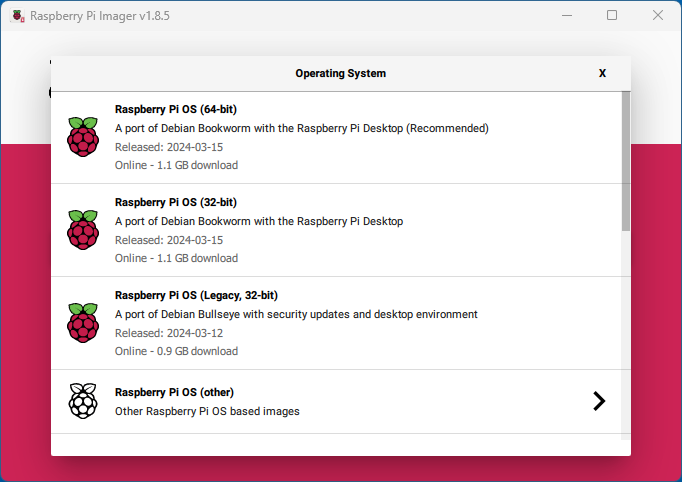
- Press "NEXT".
- When asked to apply OS Customisation settings press
EDIT SETTINGS and make these changes:
Skipping this step means you'll need to make those changes after turning your Pi on the first time. Wi-Fi won't work so you'll need to use a wired connection to the Pi, or connect a monitor, keyboard, and mouse to it.
Do not skip this step unless you enjoy pain!
- GENERAL tab:
- Set hostname:
allsky
unless you have multiple Pi's on your network in which case they must all have unique names. - Set username and password:
piand whatever you want for the password. - Configure wireless LAN:
it's MUCH easier to do this now rather than after your Pi is running. - Set local settings:
This doesn't actually change the "Locale"; it just changes the time zone and keyboard layout. Allsky will prompt for the Locale during installation.
- Set hostname:
- SERVICES tab:
- Enable SSH - Use password authentication
- GENERAL tab: