The WebUI's Editor page allows editing Allsky configuration files. Items in the editor window are color-coded depending on what they are.
HINT: The Editor accepts CTRL-Z to undo actions.
A typical view of a JSON file being edited is below, followed by a description of the color scheme.
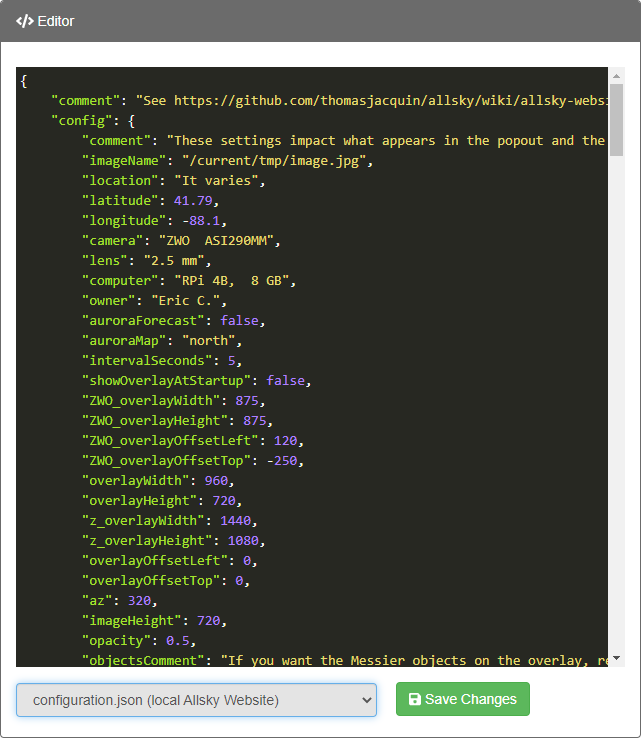
Color Scheme
- Setting names look different depending on the file type:
- In .json files they look likeThis. By convention if the name includes multiple words, the first letter of the first word is lowercase and subsequent word's first characters are Upper case. Settings names in the file MUST be enclosed in double quotes, but quotes around setting names are omitted in the Allsky documentation for readability.
- Colors for setting values vary based on value's type:
- Text (anything surrounded by quotes): "sample text". Note that a number surrounded by quotes like "41.79" is actually a string. Numbers-as-strings may work in some cases, but when entering a number it's safest to NOT use quotes.
- Numbers (when not quoted): 41.79, -88.1,
- Booleans (when not quoted): true, false.
- Special characters: { } : , =
- JSON brackets: [ ]
Debugging
If you see different colors than above while editing a file, check for syntax errors:- JSON files
- Missing commas are needed after each value except the last one in a sub-section.
This is the most common syntax error.
{
"setting1" : "value 1" < missing comma
"setting2 : "value 2" < last entry, no comma needed
} - Missing quotes - setting names and string values must be surrounded by double quotes.
setting1:"value 1" < missing quotes around name - Missing colons - one must separate each setting name from its value. There can be 0 or more spaces before and/or after the colon. setting1 "value 1" < missing colon
- Missing commas are needed after each value except the last one in a sub-section.
This is the most common syntax error.